Developer Guide
- Acknowledgements
- Setting up, getting started
- Design
- Implementation
- Documentation, logging, testing, configuration, dev-ops
- Appendix: Requirements
- Appendix: Instructions for manual testing
- Appendix: Effort
Acknowledgements
- This project is based on the AddressBook-Level3 project created by the SE-EDU initiative.
- Borrowed from AddressBook-Level4 for the
undofeature. - Libraries used: JavaFX, Jackson, JUnit5
Setting up, getting started
Refer to the guide Setting up and getting started.
Design
 Tip: The
 .puml files used to create diagrams in this document can be found in the diagrams folder. Refer to the PlantUML Tutorial at se-edu/guides to learn how to create and edit diagrams.
Architecture
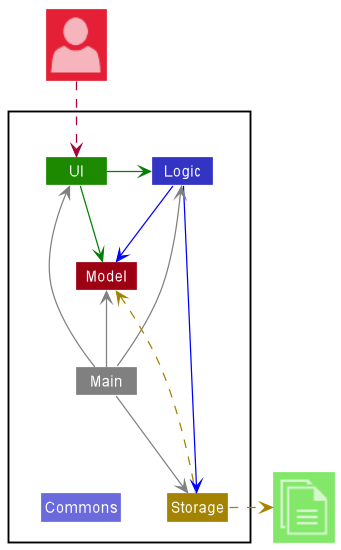
The Architecture Diagram given above explains the high-level design of the App.
Given below is a quick overview of main components and how they interact with each other.
Main components of the architecture
Main has two classes called Main and MainApp. It is responsible for,
- At app launch: Initializes the components in the correct sequence, and connects them up with each other.
- At shut down: Shuts down the components and invokes cleanup methods where necessary.
Commons represents a collection of classes used by multiple other components.
The rest of the App consists of four components.
-
UI: The UI of the App. -
Logic: The command executor. -
Model: Holds the data of the App in memory. -
Storage: Reads data from, and writes data to, the hard disk.
How the architecture components interact with each other
The Sequence Diagram below shows how the components interact with each other for the scenario where the user issues the command delete 1.

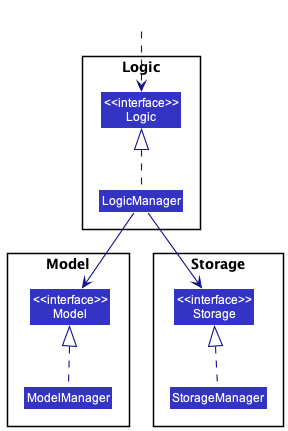
Each of the four main components (also shown in the diagram above),
- defines its API in an
interfacewith the same name as the Component. - implements its functionality using a concrete
{Component Name}Managerclass (which follows the corresponding APIinterfacementioned in the previous point.
For example, the Logic component defines its API in the Logic.java interface and implements its functionality using the LogicManager.java class which follows the Logic interface. Other components interact with a given component through its interface rather than the concrete class (reason: to prevent outside component’s being coupled to the implementation of a component), as illustrated in the (partial) class diagram below.
The sections below give more details of each component.
UI component
The API of this component is specified in Ui.java
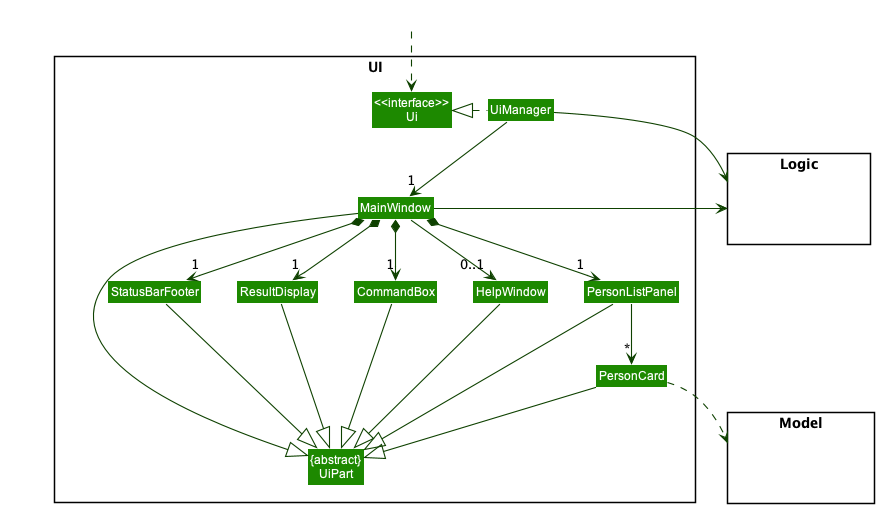
The UI consists of a MainWindow that is made up of parts e.g.CommandBox, ResultDisplay, PersonListPanel, StatusBarFooter etc. All these, including the MainWindow, inherit from the abstract UiPart class which captures the commonalities between classes that represent parts of the visible GUI.
The UI component uses the JavaFx UI framework. The layout of these UI parts are defined in matching .fxml files that are in the src/main/resources/view folder. For example, the layout of the MainWindow is specified in MainWindow.fxml
The UI component,
- executes user commands using the
Logiccomponent. - listens for changes to
Modeldata so that the UI can be updated with the modified data. - keeps a reference to the
Logiccomponent, because theUIrelies on theLogicto execute commands. - depends on some classes in the
Modelcomponent, as it displaysPersonobject residing in theModel.
Logic component
API : Logic.java
Here’s a (partial) class diagram of the Logic component:
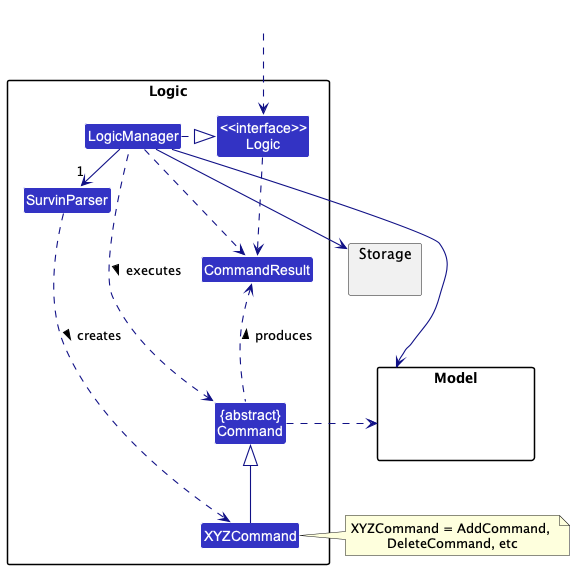
How the Logic component works:
- When
Logicis called upon to execute a command, it uses theSurvinParserclass to parse the user command. - This results in a
Commandobject (more precisely, an object of one of its subclasses e.g.,AddCommand) which is executed by theLogicManager. - The command can communicate with the
Modelwhen it is executed (e.g. to add a person). - The result of the command execution is encapsulated as a
CommandResultobject which is returned back fromLogic.
The Sequence Diagram below illustrates the interactions within the Logic component for the execute("delete 1") API call.
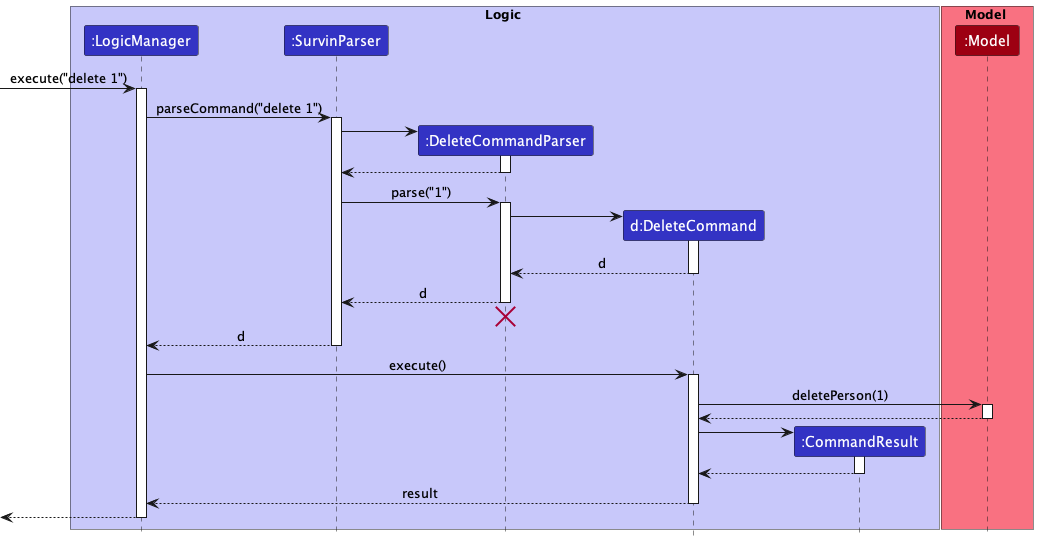
 Note: The lifeline for
 DeleteCommandParser should end at the destroy marker (X) but due to a limitation of PlantUML, the lifeline reaches the end of diagram.
Here are the other classes in Logic (omitted from the class diagram above) that are used for parsing a user command:
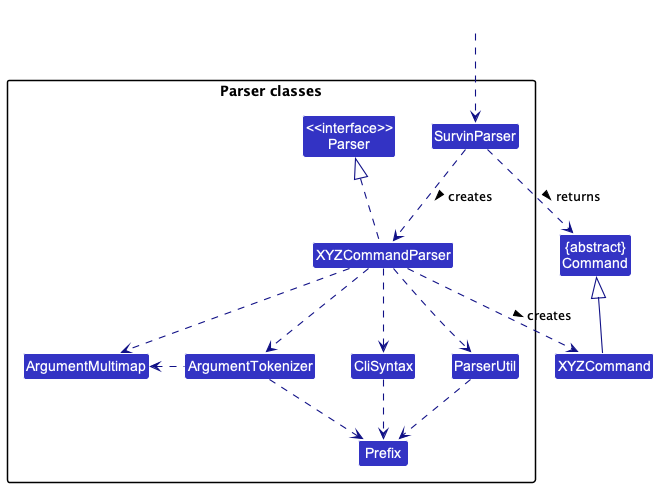
How the parsing works:
- When called upon to parse a user command, the
SurvinParserclass creates anXYZCommandParser(XYZis a placeholder for the specific command name e.g.,AddCommandParser) which uses the other classes shown above to parse the user command and create aXYZCommandobject (e.g.,AddCommand) which theSurvinParserreturns back as aCommandobject. - All
XYZCommandParserclasses (e.g.,AddCommandParser,DeleteCommandParser, …) inherit from theParserinterface so that they can be treated similarly where possible e.g, during testing.
Model component
API : Model.java
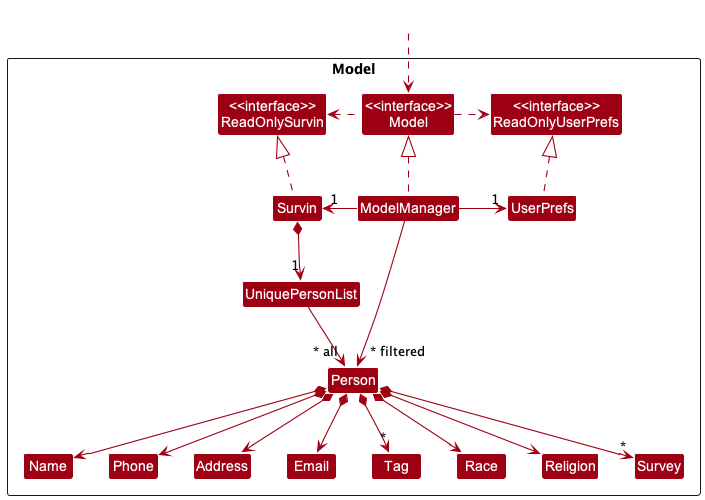
The Model component,
- stores Survin data i.e., all
Personobjects (which are contained in aUniquePersonListobject). - stores the currently ‘selected’
Personobjects (e.g., results of a search query) as a separate filtered list which is exposed to outsiders as an unmodifiableObservableList<Person>that can be ‘observed’ e.g. the UI can be bound to this list so that the UI automatically updates when the data in the list change. - stores a
UserPrefobject that represents the user’s preferences. This is exposed to the outside as aReadOnlyUserPrefobjects. - does not depend on any of the other three components (as the
Modelrepresents data entities of the domain, they should make sense on their own without depending on other components)
Note: An alternative (arguably, a more OOP) model is given below. It has a Tag list in the Survin, which Person references. This allows Survin to only require one Tag object per unique tag, instead of each Person needing their own Tag objects.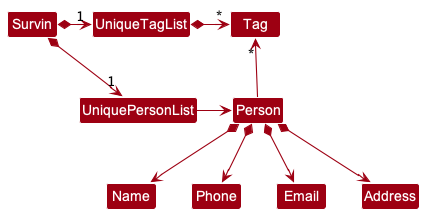
Storage component
API : Storage.java
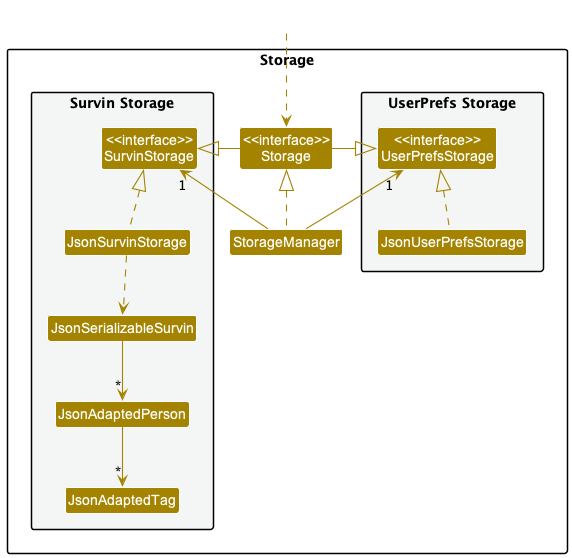
The Storage component,
- can save both Survin data and user preference data in json format, and read them back into corresponding objects.
- inherits from both
SurvinStorageandUserPrefStorage, which means it can be treated as either one (if only the functionality of only one is needed). - depends on some classes in the
Modelcomponent (because theStoragecomponent’s job is to save/retrieve objects that belong to theModel)
Common classes
Classes used by multiple components are in the seedu.address.commons package.
Implementation
This section describes some noteworthy details on how certain features are implemented.
Undo/redo feature
Implementation
Note that we only implement the undo feature in this iteration. The undo/redo mechanism is facilitated by VersionedSurvin. It extends Survin with an undo/redo history, stored internally as an survinStateList and currentStatePointer. Additionally, it implements the following operations:
-
VersionedSurvin#commit()— Saves the current Survin state in its history. -
VersionedSurvin#undo()— Restores the previous Survin state from its history. -
VersionedSurvin#redo()— Restores a previously undone Survin state from its history.
These operations are exposed in the Model interface as Model#commitSurvin(), Model#undoSurvin() and Model#redoSurvin() respectively.
Given below is an example usage scenario and how the undo/redo mechanism behaves at each step.
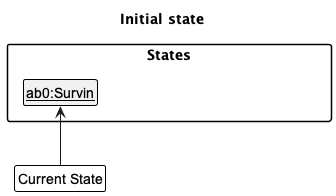
Step 1. The user launches the application for the first time. The VersionedSurvin will be initialized with the initial Survin state, and the currentStatePointer pointing to that single Survin state.
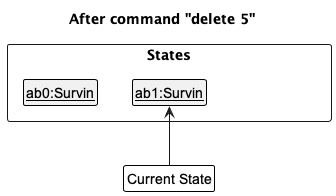
Step 2. The user executes delete 5 command to delete the 5th person in Survin. The delete command calls Model#commitSurvin(), causing the modified state of Survin after the delete 5 command executes to be saved in the survinStateList, and the currentStatePointer is shifted to the newly inserted Survin state.
Step 3. The user executes add n/David … to add a new person. The add command also calls Model#commitSurvin(), causing another modified Survin state to be saved into the survinStateList.
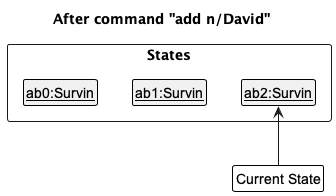
Note: If a command fails its execution, it will not call Model#commitSurvin(), so the Survin state will not be saved into the survinStateList.
Step 4. The user now decides that adding the person was a mistake, and decides to undo that action by executing the undo command. The undo command will call Model#undoSurvin(), which will shift the currentStatePointer once to the left, pointing it to the previous Survin state, and restores Survin to that state.
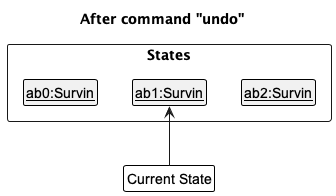
Note: If the currentStatePointer is at index 0, pointing to the initial Survin state, then there are no previous Survin states to restore. The undo command uses Model#canUndoSurvin() to check if this is the case. If so, it will return an error to the user rather
than attempting to perform the undo.
The following sequence diagram shows how the undo operation works:
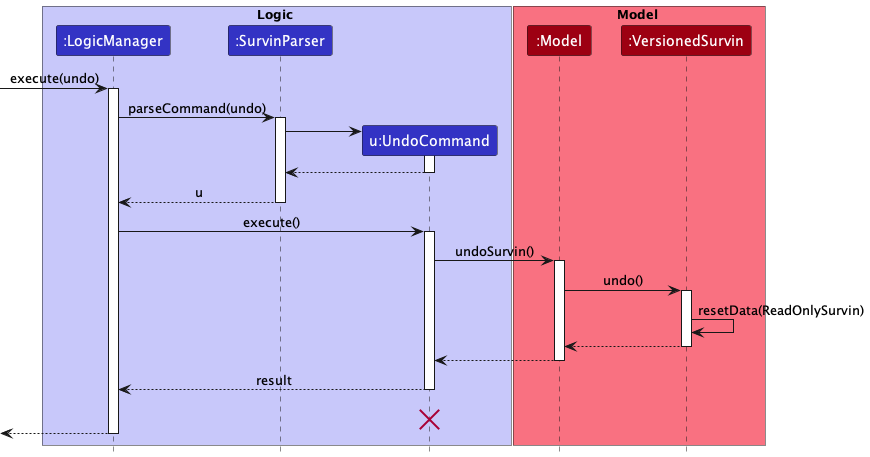
Note: The lifeline for UndoCommand should end at the destroy marker (X) but due to a limitation of PlantUML, the lifeline reaches the end of diagram.
The redo command does the opposite — it calls Model#redoSurvin(), which shifts the currentStatePointer once to the right, pointing to the previously undone state, and restores Survin to that state.
Note: If the currentStatePointer is at index survinStateList.size() - 1, pointing to the latest Survin state, then there are no undone Survin states to restore. The redo command uses Model#canRedoSurvin() to check if this is the case. If so, it will return an error to the user rather than attempting to perform the redo.
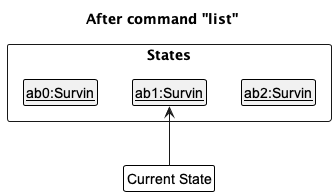
Step 5. The user then decides to execute the command list. Commands that do not modify the Survin, such as list, will usually not call Model#commitSurvin(), Model#undoSurvin() or Model#redoSurvin(). Thus, the survinStateList remains unchanged.
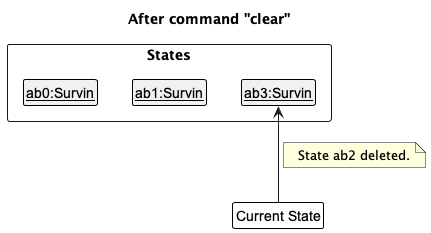
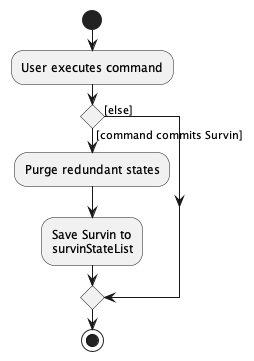
Step 6. The user executes clear, which calls Model#commitSurvin(). Since the currentStatePointer is not pointing at the end of the survinStateList, all Survin states after the currentStatePointer will be purged. Reason: It no longer makes sense to redo the add n/David … command. This is the behavior that most modern desktop applications follow.
The following activity diagram summarizes what happens when a user executes a new command:
Design considerations:
Aspect: How undo & redo executes:
-
Alternative 1 (current choice): Saves the entire Survin state.
- Pros: Easy to implement.
- Cons: May have performance issues in terms of memory usage.
-
Alternative 2: Individual command knows how to undo/redo by itself.
- Pros: Will use less memory (e.g. for
delete, just save the person being deleted). - Cons: We must ensure that the implementation of each individual command are correct.
- Pros: Will use less memory (e.g. for
Changing themes
Implementation
Implementing this feature will require the MainWindow to keep track of the current theme of Survin. This is done with an enum called Theme which is kept in a container class called Themes. Themes also stores static String variables to represent what users should type to swap to that theme.
Currently, since there are only 2 themes, there is a toggle button in GUI to toggle between the 2 themes. The method that is called when the button is pressed is called handleLightDarkTheme() in MainWindow. When called it simply checks what the current theme is and sets the theme to the other one. To keep things simple, the theme command also uses this handleLightDarkTheme() command to change the themes. A user invoking the theme command will result in the call of the handeThemeCommand(Theme) method in MainWindow which will only call handleLightDarkTheme() if the specified theme to change to is different from the current theme. This gives the expected behavior of the theme command using the toggling nature of handeLightDarkTheme().
Below is the sequence diagram that explains how the theme command works:
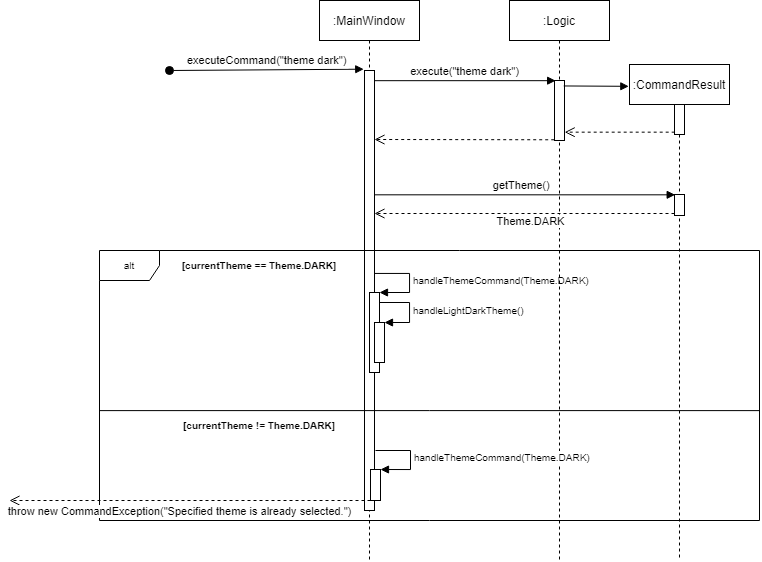 (Note: Details of the creation of CommandResult is similar to the Delete Command just without the update to model. You can find the sequence diagram for that command under the Logic Component section.)
Adding more themes (In the future)
The theme command was implemented with the addition of more themes in mind. First, add the names of the new themes in the container class Themes and their stylesheets in resources/view. Then just edit the handleThemeCommand(Theme) method with a simple switch case to change the stylesheet based on the specified theme. And since there is more than 2 themes, a toggle button would no longer work so you might want to replace that with a ComboBox or something similar. This also means that then handleLightDarkTheme() command is obsolete and can be removed.
Compactable and expandable PersonCard
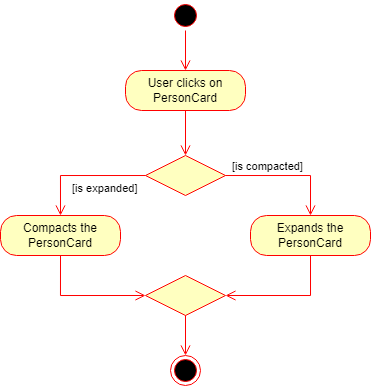
This feature is accomplished by recording the current state of the PersonCard with a boolean variable called isExpanded. isExpanded is true if PersonCard is expanded and false if PersonCard is compacted. isExpanded is set to false by default so that the application starts with all PersonCard compacted.
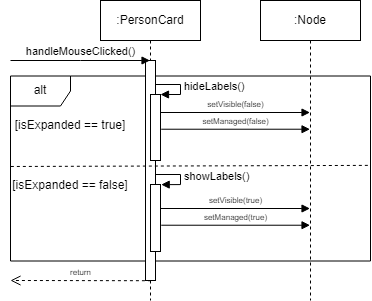
There is also a listener that listens to mouse clicks on each PersonCard. Clicking on a PersonCard calls one of two methods depending on its isExpanded value. If isExpanded is true, it calls hideLabels(). If isExpanded is false, it calls showLabels().
showLabels() calls setManaged(true) and setVisible(true) on all elements that should be shown and managed for when expanding a PersonCard. hideLabels() likewise calls setManage(false) and setVisible(false) on all elements that should be hidden and not managed for when compacting a PersonCard.
Note: It is required to setManaged(true) or setManaged(false) when showing or hiding respectively, if not PersonCard will not account for space for the shown elements or will account for space for hidden elements.
The sequence diagram below shows how the process works:
Due to the way the updateItem method works in the ListCell class. There were some undesirable effects in the UI. Whenever the user clicks on a PersonCard, two things would happen, handleMouseClicked and updateItem would be called. updateItem would create a new PersonCard to replace the old PersonCard. This is good if there was an update to the PersonCard but in this case there was no update. This results in the handleMouseClicked call to be useless since it was called in the PersonCard that was replaced. The newly created PersonCard would default to its original state of being compacted and effectively nothing would happen from the click the user made.
The sequence diagram below demonstrates the problem:
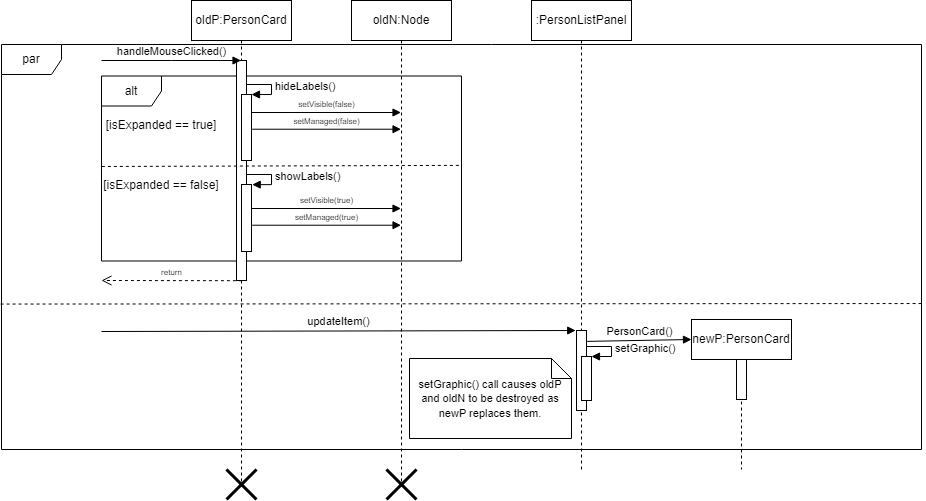
To stop this from happening, updateItem has to create a new PersonCard only if the PersonCard to be created is not the same as the current PersonCard. Now even if updateItem is called, no new PersonCard is created unless it is a different PersonCard. This results in the expected behavior of resetting the state of a PersonCard to its default state if it changes and keeping its state, since it is not replaced, if it is the same PersonCard.
The activity diagram below explains what happens when the user clicks on a PersonCard:
Improved DeleteCommand
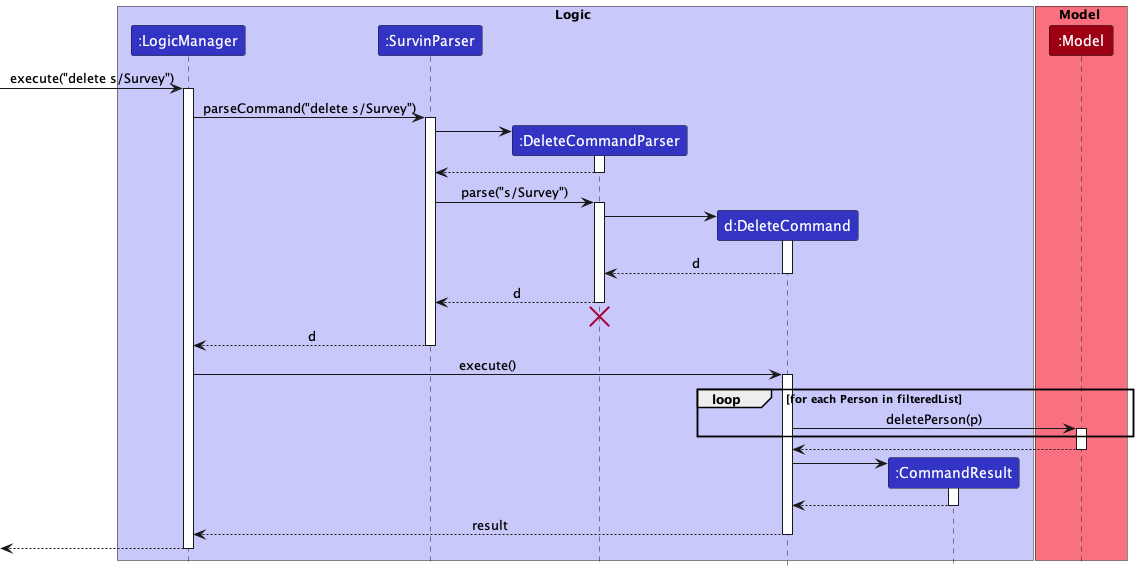
To accomodate the new functionality of delete, we make modifications in both DeleteCommandParser and DeleteCommand classes.
In the DeleteCommandParser class, we made use of a regex string to check if the user specified a digit or attributes. If the user provided a number, then the parse method would parse the input as an index. Else, the method would attempt to parse for the attributes. If none is provided, then we will throw an exception.
Since the user can provide any number of the three attributes (from 1 to 3 inclusive), it is natural to make use of the Optional container object, which is rather helpful in avoiding the usage of null in the implementation.
For the DeleteCommand class, the idea is rather straightforward where we make use of Predicate so that we can make use of the updateFilteredPersonList method in the ModelManager class. Note that if the user specified a survey, we would only remove the person if that was the only survey that the person is involved in, or else, we would just remove the survey from the person.
ViewCommand feature
This feature allows users to view Person objects with specified attributes. The current implementation supports viewing keywords in any of the following fields
NamePhoneEmailAddressGenderBirthdateRaceReligionSurveyTag
This is a new enhancement in v1.3, as older iterations did not support viewing by Survey or Tag. We hope that this implementation allows the user to filter and view specific demographics more easily, for example, viewing all chinese males that has participated in a Food survey.
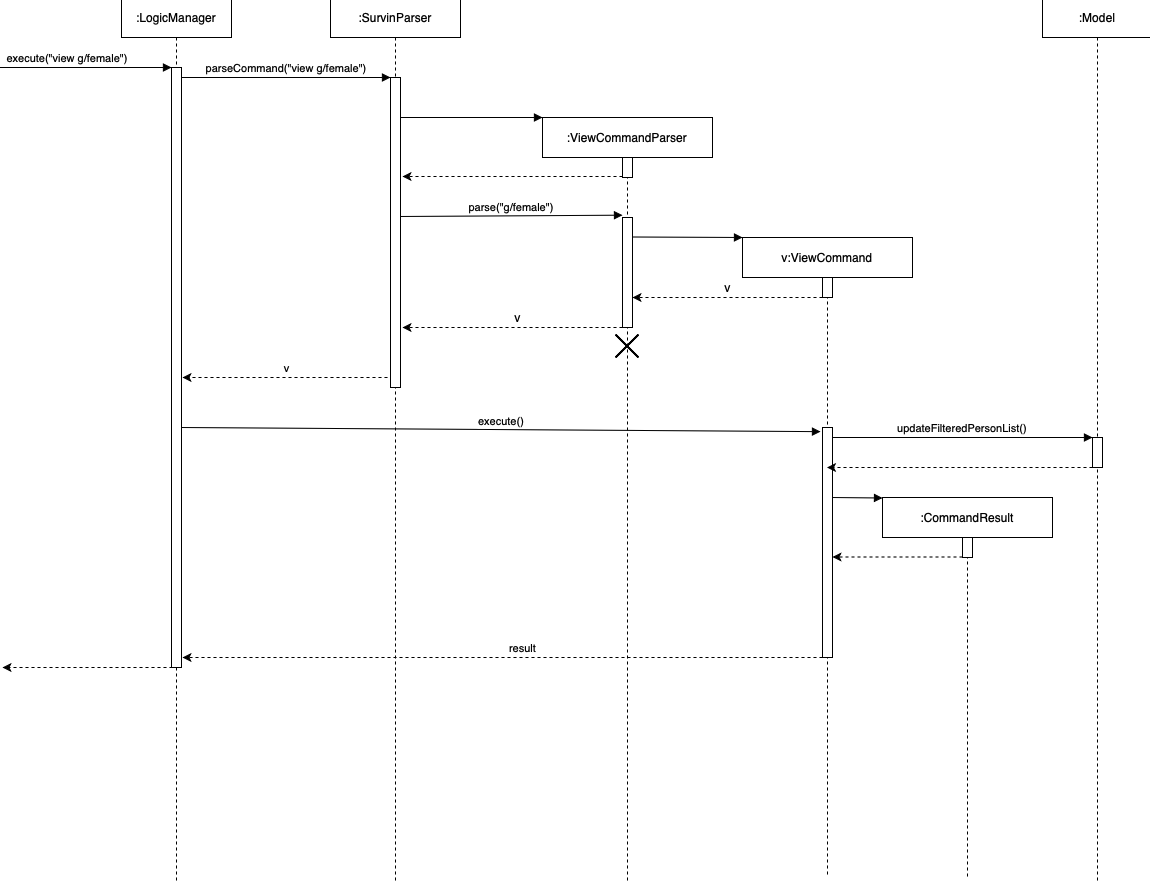
This is achieved in the ViewCommand and ViewCommandParser classes.
In ViewCommandParser, we make use of the ArugmenetMultimap class to parse the user input and interprets them to get the values of the suffixes input by the user. Note that there is a possibility that the values to said suffixes are null, but this is handled by wrapping them in an Optional by ArgumentMultimap.
With this list of values, we make use of Predicate to define a predicate which returns true whenever a person contains the attributes as specified by the list of values, and returns false otherwise.
The predicate is then passed into ViewCommand, where we call updateFilteredPersonList in the ModelManager class to get a filtered list of people satisfying the predicate.
The sequence diagram below shows how the process works:
CloneCommand feature
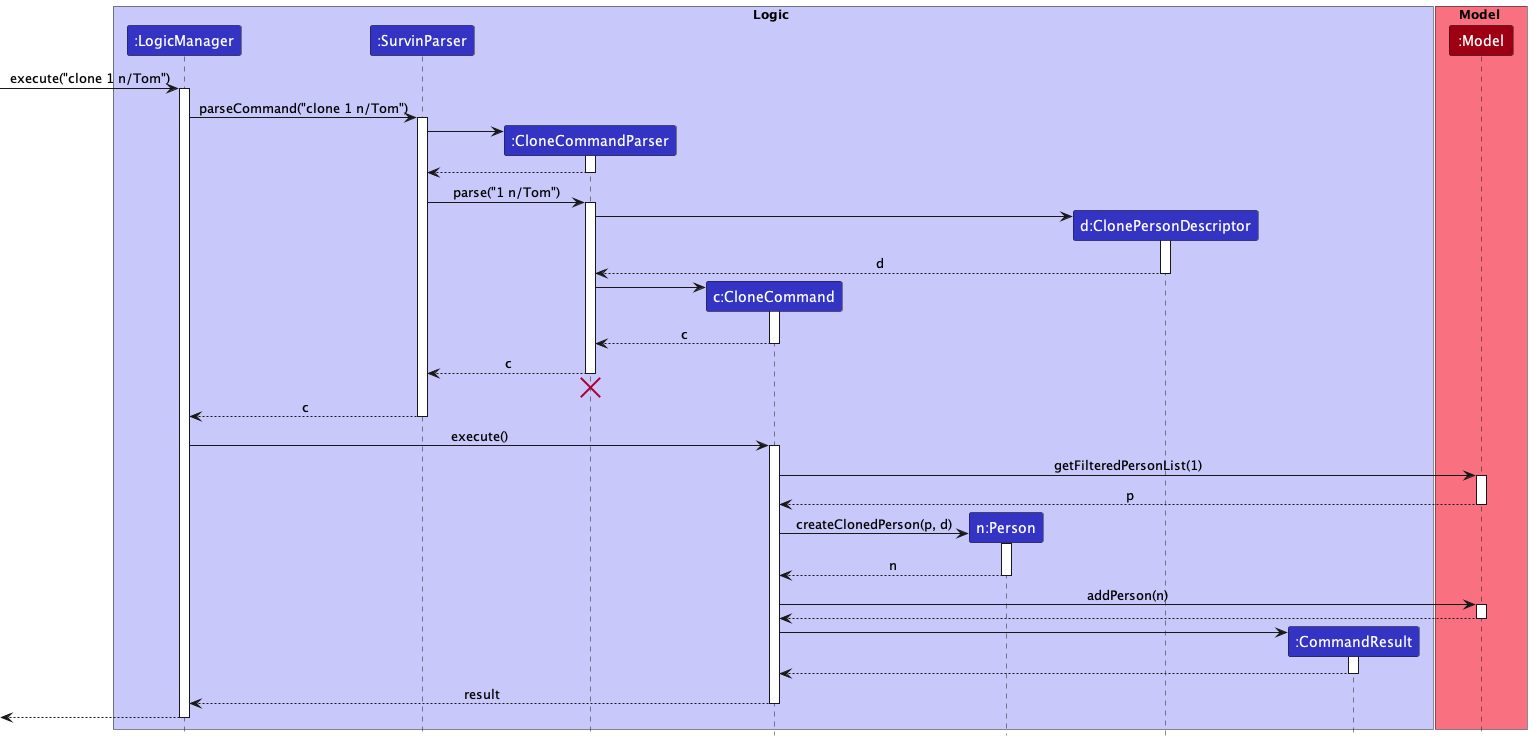
This feature allows the user to clone all details of an existing surveyee with updated attributes. It is accomplished mainly by using the CloneCommandParser and CloneCommand classes.
In the CloneCommandParser class, we parse the arguments using ArgumentMultimap class and check which attributes are present in the arguments. We will then create a ClonePersonDescriptor object to store these attributes.
In the CloneCommand class, we will retrieve the person we want to clone by getFilteredPersonList method, then call createClonedPerson method to compare the person we retrieved with the ClonePersonDescriptor object, get the updated attributes and return a new person. Then call addPerson method in ModelManager to add this newly created person in.
Note that if the new person we cloned is already in Survin, it will trigger a duplicate cloned person exception.
Documentation, logging, testing, configuration, dev-ops
Appendix: Requirements
Product scope
Target user profile:
- has a need to manage a significant number of surveyees
- prefer desktop apps over other types
- can type fast
- prefers typing to mouse interactions
- is reasonably comfortable using CLI apps
Value proposition: manage surveyees faster than a typical mouse/GUI driven app
User stories
Priorities: High (must have) - * * *, Medium (nice to have) - * *, Low (unlikely to have) - *
| Priority | As a … | I want to … | So that I can… |
|---|---|---|---|
* * * |
user | use ‘add’ in the command line | add a new surveyee quickly |
* * * |
user | use ‘edit’ in the command line | edit a surveyee quickly |
* * * |
user | use ‘delete’ in the command line | delete a surveyee quickly |
* * * |
user | use ‘view’ in the command line | view my surveyees’ information quickly |
* * |
user | use ‘clone’ in the command line | use an existing surveyee as a template for a new surveyee to save time |
* * |
user | add on surveys or tags to existing surveyees without the need to retype everything again | save time and effort when adding on surveys and tags |
* * |
user | remove existing surveys or tags from surveyees without clearing everything | save time and effort re-adding the ones I did not want to delete |
* * |
user | hide more detailed information on a surveyee | protect their information and have a less cluttered GUI |
* * |
user | use ‘view |
save time when looking for surveyees with a specific attribute |
* * |
user | use ‘delete |
save time when deleting surveyees with a specific attribute |
* |
user | change between a ‘light’ and ‘dark’ theme | have a GUI that is comfortable to use in the day and at night |
* |
user | use CTRL + N | add a new surveyee qucickly |
* |
user | use CTRL + R | clear all the texts in command box qucikly |
* |
user | use CTRL + E | edit an existing surveyee qucickly |
* |
user | use CTRL + D | delete an existing surveyee qucickly |
* |
user | use CTRL + M | mark an existing surveyee qucickly |
* |
user | use CTRL + U | unmark an existing surveyee qucickly |
* |
user | use CTRL + Z | undo a command qucikly |
* |
user | use CTRL + L | clone a new surveyee qucickly |
* |
user | use CTRL + I | view an existing surveyee qucickly |
Use cases
(For all use cases below, the System is the Survin and the Actor is the user, unless specified otherwise)
Use case: Delete a surveyee
MSS
-
User requests to list surveyees
-
Survin shows a list of surveyees
-
User requests to delete a specific surveyee in the list
-
Survin deletes the surveyee
Use case ends.
Extensions
-
2a. The list is empty.
Use case ends.
-
3a. The given index is invalid.
-
3a1. Survin shows an error message.
Use case resumes at step 2.
-
Use case: view surveyees
Preconditions: User can recall the part of a survey name
MSS
-
User would like to search for a specific demographic for a survey
-
User views such surveyees in the desired demographic with
view -
Survin displays all surveyees that matches the search and shows whether the survey has been completed
Extensions
-
2a. The survey name is not found.
- 2a1. Survin returns an empty list.
- 2a2. The user tries again with another survey keyword.
Steps 2a1-2a2 are repeated until some keywords are matched
Use case resumes from step 3.
Use case: Append surveys/tags to a surveyee
MSS
-
User requests to list surveyees
-
Survin shows a list of surveyees
-
User requests to append surveys and/or tags to a specific surveyee in the list
-
Survin appends requested surveys and/or tags to the surveyee
Use case ends.
Extensions
-
2a. The list is empty.
Use case ends.
-
4a. The requested surveys and/or tags already exist on the surveyee
-
4a1. Survin shows an error message.
Use case resumes at step 2.
-
Use case: Unappend surveys/tags to a surveyee
MSS
-
User requests to list surveyees
-
Survin shows a list of surveyees
-
User requests to unappend surveys and/or tags from a specific surveyee in the list
-
Survin unappends requested surveys and/or tags from the surveyee
Use case ends.
Extensions
-
2a. The list is empty.
Use case ends.
-
4a. The requested surveys and/or tags does not exist on the surveyee
-
4a1. Survin shows an error message.
Use case resumes at step 2.
-
Use case: Change theme
MSS
-
User requests to change the theme of Survin
-
Survin’s theme changes
Use case ends.
Use case: Show/Hide more detailed information
MSS
-
User requests to show/hide more detailed information of surveyees
-
Survin shows/hides more detailed information of surveyees
Use case ends.
Use case: Clone an existing surveyee
MSS
-
User wants to add a new person that is the son of an existing surveyee, both of them sharing alot similar information and took part in the same survey.
-
User finds the index of the dad in the list of surveyees.
-
User uses clone command to clone the dad with updated details of the son.
-
A new surveyee which is the son has been added.
Use case ends.
Non-Functional Requirements
- Should work on any mainstream OS as long as it has Java
11or above installed. - A user with above average typing speed for regular English text (i.e. not code, not system admin commands) should be able to accomplish most of the tasks faster using commands than using the mouse.
- No backend server required since local storage is used.
Glossary
- Mainstream OS: Windows, Linux, Unix, OS-X
- Private contact detail: A contact detail that is not meant to be shared with others
Appendix: Instructions for manual testing
Given below are instructions to test the app manually.
Note: These instructions only provide a starting point for testers to work on;
testers are expected to do more exploratory testing.
Launch and shutdown
-
Initial launch
-
Download the jar file and copy into an empty folder
-
Double-click the jar file Expected: Shows the GUI with a set of sample contacts. The window size may not be optimum.
-
-
Saving window preferences
-
Resize the window to an optimum size. Move the window to a different location. Close the window.
-
Re-launch the app by double-clicking the jar file.
Expected: The most recent window size and location is retained.
-
Deleting a person
-
Deleting a person while all surveyees are being shown
-
Prerequisites: List all surveyees using the
listcommand. Multiple surveyees in the list. -
Test case:
delete 1
Expected: First contact is deleted from the list. Details of the deleted contact shown in the status message. Timestamp in the status bar is updated. -
Test case:
delete 0
Expected: No person is deleted. Error details shown in the status message. Status bar remains the same. -
Test case:
delete s/Enviromental Survey
Expected: Surveyees with survey namedEnvironmental Surveywould only be deleted if that was the only survey that the surveyee has, otherwise,Environmental Surveywould be removed from the list of surveys the surveyee has (surveyee is not deleted in this case). -
Other incorrect delete commands to try:
delete,delete x,...(where x is larger than the list size)
Expected: Similar to previous.
-
Mark a survey as completed
-
Mark a survey completed while all surveyees are shown
-
Prerequisites: List all surveyees using the
listcommand. Multiple surveyees in the list. -
Test case:
mark 1 s/Environmental SurveyExpected: If the first surveyee has the surveyEnvironmental Survey, then the survey would be marked as done. Otherwise, error is shown.
-
Mark a survey as completed
- Omitted as it is similar to
Mark a survey as completed.
Appending surveys/tags to a surveyee
-
Appending surveys/tags to a surveyee while all surveyees are shown
-
Prerequisites: List all persons using the
listcommand. Multiple persons in the list. -
Test case:
append 1 s/New Survey
Expected 1: First surveyee in the list has ‘New Survey’ added to their list of surveys
Expected 2: Error shown if first surveyee in the list already has ‘New Survey’ in their list of surveys before the command. -
Test case:
append 1 s/New Survey s/New Survey2 t/newTag t/newTag2
Expected 1: First surveyee in the list has ‘New Survey’ and ‘New Survey2’ added to their list of surveys and has ‘newTag’ and ‘newTag2’ added to their list of tags.
Expected 2: Error shown if first surveyee in the list already has any of the surveys or tags specified in the command before the command.
-
Unappending surveys/tags from a surveyee
- Omitted as it is similar to ‘Appending surveys/tags to a surveyee’
Changing theme
-
Changing theme while in light theme
- Test case:
theme dark
Expected: Survin changes to the dark theme. - Test case:
theme light
Expected: Survin shows an error message. - Test case: Click on the
Appearancetab and selectDark Theme
Expected: Survin changes to the dark theme.
- Test case:
-
Changing theme while in dark theme
- Test case:
theme light
Expected: Survin changes to the light theme. - Test case:
theme dark
Expected: Survin changes to the dark theme. - Test case: Click on the
Appearancetab and selectLight Theme
Expected: Survin changes to the light theme.
- Test case:
Showing/Hiding more detailed information
-
Showing more detailed information
-
Single surveyee
- Test case: Click on the surveyee you wish to show more details (Note: surveyee should be in the hiding more detailed information state) Expected: Surveyee will have their more detailed information shown.
-
All surveyees
-
Test case:
toggle-list-mode
Expected: All surveyees have their more detailed information shown. (Note: The mode of the list will change, this means that newPersonCardwill be created in this showing more detailed information state) -
Test case: Click on the
Appearancetab and selectExpanded Cards
Expected: All surveyees have their more detailed information shown. (Note: The mode of the list will change, this means that newPersonCardwill be created in this showing more detailed information state)
-
-
-
Hiding more detailed information
- Omitted as it is similar to ‘Showing more detailed information’.
Clone an existing surveyee
-
Clone an existing surveyee while all surveyees are shown
-
Prerequisites: List all persons using the
listcommand. Multiple persons in the list. -
Test case:
clone 1 n/James Lee p/91234567 e/jameslee@example.com b/1990-10-22
Expected 1: A new person with name James Lee, phone number 91234567, email jameslee@example.com and birthdate 1990-10-22 and other details same as the first person will be added to the end of the list.
Expected 2: Error shown if this person is already exist in the Survin.
-
Appendix: Effort
Challenges faced
- Finding out that the
updateItem()method was the reason for the buggy implementation of the compacted and expanded PersonCard took some time. There was a need to read a lot of documentation to find the fix. - Finding out how to change the stylesheet took some time. AB3 did not seem to use
Scenedue to the use ofFXMLLoaderand I needed to get the scene to get the stylesheet. Took a few hours to find out that theStageclass had agetScene()method. - Given that we want
deleteto support both deleting by index and deleting by attributes, it is rather tricky to settle on an implementation as there were many alternative choices that we could have taken. At the end, we settled on implementing all the necessary details inDeleteCommanditself since increasing the amount of abstraction would actually increase coupling. So, we opted to contain all the code in the Command class itself. This is a recurring theme throughout the different commands that we chose to add. - Since we wanted to support a surveyee having multiple surveys, we had to change the definition of a unique surveyee in the app and change the corresponding code to adapt to this change. For instance, in the add command, we had to check whether the new surveyee to be added differs only by the survey name. If it was the case that only the survey name was different, then, we had to get existing person in the app and set it to a new copy with the new survey name added to the list of surveys. So, it became rather nuanced and involved.